 Own your intelligence12 minUsage limits shift without warning. Models get quietly dumber some days. Agents refuse normal marketing work. The fix one small software team is betting on: use GPT-6 and Opus 5.5 to teach an open-weight Qwen3.8 model your exact jobs, then let a referee and a private benchmark decide when it takes over.Read now →
MiniMax's New Open Image Model Makes 4K Pictures in Seconds on a Gaming PC. Read the License First
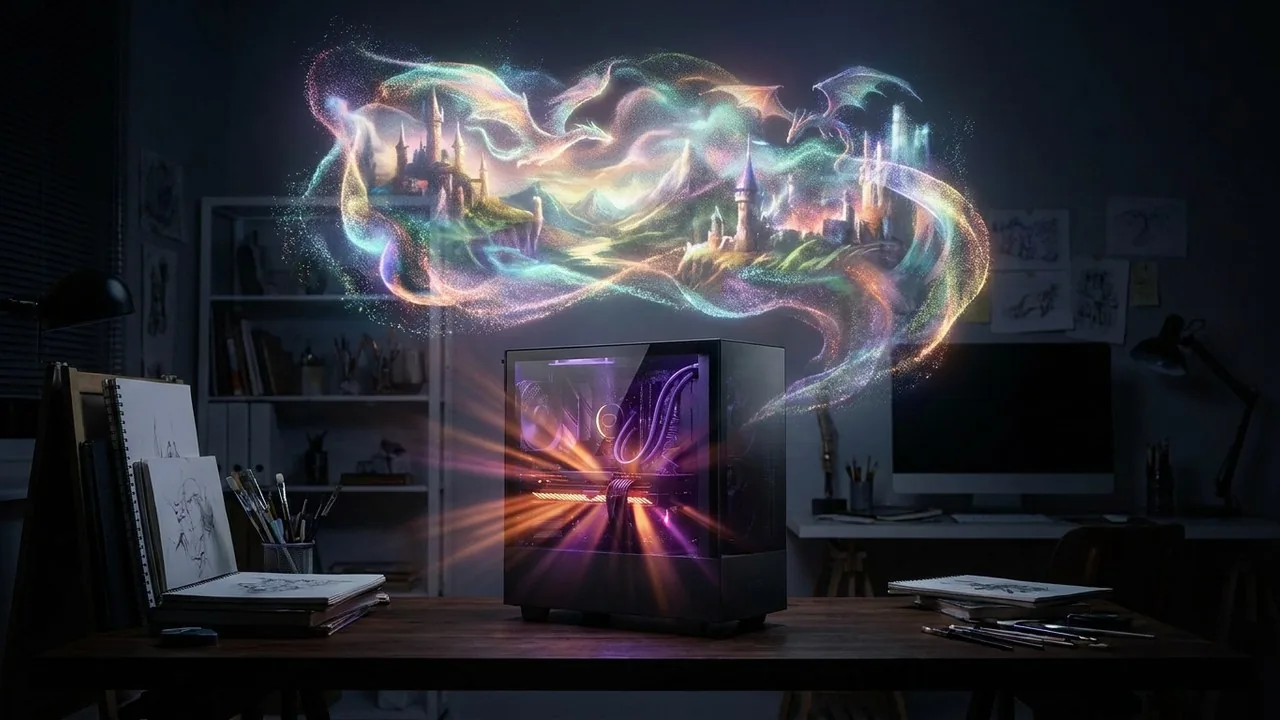
MiniMax H3-Image generates and edits high-resolution images in seconds, takes up to 16 reference pictures, and runs offline on a 16GB graphics card. It is one of the strongest open image models yet. But its license carries restrictions every user should check before downloading.
Advertisement
Contents
- A fast new open image model
- The headline specs
- Under the hood
- Why six steps changes everything
- What it is good at
- Editing tests against Qwen-Image
- Text-to-image tests against Krea
- How to run it locally in ComfyUI
- Text-to-image settings that matter
- Editing and multiple references
- Running on low VRAM
- Which setup fits your PC
- Prompting it well
- For developers: serving it
- The license catch
- Why this matters
- Practical takeaways
- Counterpoints and risks
- FAQ
- The bottom line
A fast new open image model
Chinese AI lab MiniMax built its reputation on video, with open models that impressed creators. On November 10, 2026, it turned to still images with MiniMax H3-Image, an open-weight model that generates and edits pictures.
The pitch is simple: very high resolution, very fast, flexible editing, and the ability to run on your own computer with no subscription and no upload to someone else's server.
Hands-on testers have been impressed, especially by the speed. But there are real trade-offs, from file sizes to a license that excludes several major markets. Here is the full picture.
The headline specs
According to MiniMax and early testing:
Advertisement
- Resolution: native output up to around 16 megapixels, or 4096 by 4096 pixels.
- Speed: MiniMax says it can produce a 4K image in under 10 seconds on suitable hardware, and its own charts show it faster than leading closed tools such as OpenAI's image models and Google's Nano Banana for both generation and editing.
- References: up to 16 reference images in a single edit.
- Hardware: quantized versions reportedly run on GPUs with as little as about 6GB of VRAM, putting it in reach of many consumer cards.
Speed claims from a model's maker deserve skepticism until independently benchmarked. But testers running it on a 16GB card reported a roughly 2K text-to-image result in about 11 seconds and a 4-megapixel edit in about 26 seconds. That is fast for local generation at that size.
Under the hood
MiniMax's model card is unusually detailed, and the numbers explain both the quality and the hardware demands.
The core is a 33.1-billion-parameter diffusion transformer, a single-stream design with 50 layers. That is very large for an image model. Many popular open image models are a fraction of that size.
It shares its design with MiniMax's broader H3 family, which also handles video and audio. The image version simply removes the audio branch. Your text prompt and any reference images are encoded together and packed into one sequence, so the model reasons about words and pictures in the same space rather than bolting image conditioning onto a text model.
Prompts are read by a Qwen3-VL text encoder, a vision-language model, which helps the system understand both your instructions and the content of reference images. A custom image VAE compresses pictures 16 times in each direction, and each transformer token ends up covering a 32-by-32-pixel patch. That aggressive compression is part of how it handles 16-megapixel canvases without exploding compute.
Generation and editing live in one checkpoint. You do not need separate models for creating and modifying images.
Why six steps changes everything
The biggest reason for the speed is distillation. Most diffusion models refine an image over 20 to 50 denoising steps, and many run each step twice for a technique called classifier-free guidance.
H3-Image is distilled to just six sampling steps with no classifier-free guidance. That means far fewer passes through a very large network. MiniMax's own serving documentation even rejects other step counts and guidance values.
The trade-off is flexibility. Negative prompts, a favorite tool for steering away from unwanted elements, are not supported. You shape the image entirely through the positive prompt and references.
It also explains the resolution advice. The model's effective working range is about 4 to 20 megapixels, with best results around 16. Ask it for a small 1-megapixel image and quality drops, which is why tutorials push users to generate large and downscale later if needed.
What it is good at
The model is a generalist. Example outputs and tests show:
- Photorealistic people in varied settings.
- Many art styles, including comics, manga, anime, painting and flat vector graphics.
- Text and design work, such as posters and layouts with lots of lettering.
- Editing, including object replacement, upscaling, restoration and color correction.
That breadth matters. Many open models excel at one niche and struggle elsewhere. H3-Image aims to be a single tool for most image jobs.
Editing tests against Qwen-Image
The natural benchmark for open image editing has been Alibaba's Qwen-Image family. In side-by-side tests against Qwen-Image 2.1, results were close.
Merging multiple references
Combining four reference images into one scene, neither model was perfect. Both struggled to carry one person's face over faithfully, though other details came through well.
Upscaling blurry photos
On a blurry image, both models upscaled cleanly. On a very low-resolution portrait of a famous public figure, both produced sharp faces that did not quite look like the real person. That is a reminder that upscaling invents detail rather than recovering it.
Character sheets
Given a complex character design, both generated convincing front, side and back views, keeping intricate details like a weapon, and inferring parts of the body that were not visible in the original.
Restoring old photos
Here the models differed in philosophy. Qwen-Image stayed more faithful to the original damaged photo. MiniMax tended to upscale and add detail, which may or may not be what you want for family archives.
Color correction
On a photo deliberately ruined with bad contrast, white balance and saturation, MiniMax came closer to the true original colors.
Verdict: a near tie, with MiniMax stronger on color and speed and Qwen more conservative on restoration.
Text-to-image tests against Krea
For pure generation from prompts, testers compared it with Krea 2, a model favored for natural photorealism.
- Complex scenes with text: Krea looked more realistic. MiniMax images looked too perfect and polished, a common giveaway of AI images.
- Dynamic poses: on a woman leaning out of a car window with motion blur, MiniMax won.
- Hard anatomy: on a specific yoga pose, Krea understood it while MiniMax did not. On another test showing both palms and both soles, MiniMax followed the prompt better.
- Spelling: both made errors in rendered text; MiniMax made fewer.
- Styles: Krea was preferred for a dot-based flat illustration and a Monet-style painting. MiniMax won on UI design and a magazine cover.
Verdict: MiniMax shines on design, layout and instruction-following. Krea still looks more like a real photo.
How to run it locally in ComfyUI
The most popular way to run it locally is ComfyUI, the node-based open-source interface for image models. Here is the general process.
1. Update ComfyUI
Use the latest version. On the Windows portable build, run the update script in the update folder, wait for it to finish, then restart.
2. Load the templates
In the Templates sidebar, search for MiniMax image. There are two official workflows: text-to-image and image edit. If they do not appear, download the workflow files from ComfyUI's documentation and drag them onto the canvas.
3. Download the models
On first load you will see missing-model errors. You need four parts:
| Component | Purpose | Approximate size |
|---|---|---|
| Diffusion model | Generates the image | ~40GB (ComfyUI BF16 package) or ~12.5GB (W4A8) |
| Text encoder (Qwen3-VL) | Understands your prompt | ~27GB (int8) or ~15.7GB (NVFP4) |
| VAE | Converts to final pixels | ~1.2GB |
| Prompt enhancer (optional) | Rewrites prompts | ~7.3GB |
Each file goes in the matching ComfyUI models folder: diffusion models, text encoders and VAE.
These are ComfyUI's repackaged files. The official full-precision release on Hugging Face is much bigger: about 66GB for the transformer and a similar size for the full text encoder.
The W4A8 version is the practical choice for most people. The NVFP4 text encoder only works on recent Nvidia Blackwell-generation GPUs. Older cards need the larger int8 file.
The prompt enhancer is optional. Good prompts make it unnecessary, and skipping it saves memory and time.
Text-to-image settings that matter
After downloading, refresh the model list and select each file in its loader node. Then:
- Prompt: describe the image in detail.
- Prompt enhancer toggle: off unless you downloaded the extra model.
- Seed: the same seed and settings reproduce the same image. Randomizing gives variations.
- Resolution: the model performs poorly at 1 megapixel. Use at least 2 megapixels, ideally 4 or more.
- Sampler and scheduler: defaults are fine to start.
One pleasant surprise: even though the text encoder is larger than a 16GB card's memory, ComfyUI's automatic memory management offloads parts of the model so it still runs quickly.
Editing and multiple references
The edit workflow loads the same models, plus your input image and an instruction, such as replacing a taxi with a pastel pink ice cream truck.
Because the model works poorly at low resolution, the template includes resize nodes that upscale your input to about 4 megapixels first, then match the output size to it. It also shows a before-and-after slider.
To use multiple references:
- Add a Load Image node for each reference.
- Connect them to separate image inputs.
- Bypass the single-image resize nodes and enter the output width and height manually, for example 2048 by 2048.
- Write a prompt referring to each image, such as "the woman in picture one standing beside the car in picture two, under the Milky Way."
A two-reference composite reportedly took about 40 seconds on a 16GB card with good consistency.
Running on low VRAM
If the 12.5GB model is too large, community GGUF quantizations compress it further. The smallest Q2 version is under 7GB, with some loss of quality. Compressed text encoders also exist, around 12 to 15GB.
To use them, install the ComfyUI-GGUF extension by city96 through the extension manager, then swap the standard diffusion loader for the GGUF Unet Loader node inside the workflow and bypass the original loader.
Pick the largest quantization that fits your VRAM. Lower quantizations save memory at the cost of detail.
Which setup fits your PC
A rough guide based on the published file sizes and early reports:
- 24GB or more of VRAM: run the W4A8 model comfortably, and consider the larger text encoder for best prompt understanding.
- 16GB: W4A8 works well thanks to ComfyUI's automatic offloading. Expect roughly 10 to 40 seconds per image depending on size and references.
- 8 to 12GB: use a mid-level GGUF quantization and a compressed text encoder. Generation slows and fine detail softens.
- Around 6 to 8GB: the smallest Q2 files can run, but treat results as drafts.
System memory and disk matter too. Offloading moves parts of the model into regular RAM, so 32GB or more of system memory helps, and the downloads together can easily pass 30GB. Fast SSD storage noticeably shortens model loading times.
Prompting it well
MiniMax's documentation says the model expects a detailed English description of the whole image. Its own API quietly rewrites short prompts, in any language, into that kind of long description before generating.
That has practical consequences for local users who switch off the optional prompt enhancer:
- Describe everything: subject, setting, lighting, lens or art style, color palette and mood.
- Spell out text exactly if you want lettering in the image, including where it should appear.
- Name references by order: in editing, uploaded images are referred to as picture one, picture two and so on, following upload order.
- Say what to keep: in edits, state which elements must stay unchanged, since there is no negative prompt.
The showcase on the model card hints at ambitions beyond pretty pictures: turning an untextured 3D render into a film still, converting a top-down game map into a first-person view with the map as a minimap, and composing ten references, an empty room plus nine pieces of furniture, into one furnished living room.
For developers: serving it
Beyond ComfyUI, MiniMax recommends several serving frameworks, including SGLang, vLLM-Omni, Hugging Face diffusers and LightX2V. With SGLang or vLLM-Omni, a single command starts a server exposing OpenAI-style endpoints for image generation and edits, returning PNGs.
The full model targets data-center hardware such as Nvidia H200 and RTX PRO 6000 Blackwell cards and AMD Instinct accelerators, and requests can be split across several GPUs for lower latency.
For apps that need consistent results, the documentation recommends generating the initial noise on the CPU so the same seed produces the same image on any machine, which is useful for reproducible pipelines and testing.
The license catch
Here is what many tutorials skip. "Open weights" does not mean "open for everyone."
According to MiniMax's license published with the model, its use is not licensed in the European Union, the United Kingdom, the United States or South Korea, and commercial use by organizations above a revenue threshold of about $1 million requires separate authorization from MiniMax.
That is a major restriction. Anyone in those regions, or any business using it commercially, should read the license text carefully and, if in doubt, consult legal advice before using outputs in client work. Downloading the files is easy. Being permitted to use them is a separate question.
Why this matters
Open image models are catching up to closed services. A model that generates high-resolution images in seconds on a gaming PC challenges the subscription model of cloud image tools. Local generation also brings privacy, since images never leave your machine, and cost control, with no per-image fees.
But licensing is becoming the new battleground. As Chinese labs release powerful open-weight models, regional restrictions and commercial thresholds increasingly determine who can actually use them.
Practical takeaways
- Check the license first, especially in the US, UK, EU or South Korea, or for commercial work.
- Start with W4A8 and skip the prompt enhancer to save memory.
- Generate at 2 to 4 megapixels or more; low resolutions look worse.
- Pick models by task: MiniMax for design, edits and speed; Krea-style models for natural photorealism; Qwen for faithful restoration.
- Use GGUF quantizations on cards under 12GB, accepting some quality loss.
Counterpoints and risks
- Vendor benchmarks: speed and quality comparisons from MiniMax itself need independent confirmation.
- Polished look: many outputs look obviously AI-generated.
- Huge files: even the efficient setup needs tens of gigabytes of downloads and disk space.
- Invented detail: restoration and upscaling can add things that were never there, risky for historical or legal photos.
- Likeness misuse: easy local editing of real people's faces raises consent and deepfake concerns.
- Legal uncertainty: regional license exclusions make use murky for many readers.
FAQ
What is MiniMax H3-Image?
An open-weight AI image generation and editing model released by MiniMax on November 10, 2026, supporting up to roughly 16-megapixel output and up to 16 reference images.
Can I run it on my own computer?
Yes. It runs offline in ComfyUI. A 16GB GPU handles the standard setup well, and compressed GGUF versions can run on far less VRAM.
Is it better than Qwen-Image or Krea?
It depends on the task. In hands-on tests it was roughly even with Qwen-Image for editing and better at color correction, while Krea 2 produced more natural photorealism.
Is it free to use commercially?
Not necessarily. The license excludes some regions and requires authorization for commercial use above a revenue threshold. Read it before using it for business.
The bottom line
MiniMax H3-Image is one of the fastest and most capable open image models yet, bringing 4K generation and multi-image editing to a home GPU. For hobbyists in permitted regions, it is an exciting free tool.
But read the license before you hit download. The model is open. The permission to use it is not universal.
Sources
- MiniMax, MiniMax H3-Image announcement
- Hugging Face, MiniMaxAI/MiniMax-H3-Image model card
- GitHub, ComfyUI-GGUF by city96
- ComfyUI, ComfyUI official documentation
More stories you'll want to read
Own your intelligence12 minUsage limits shift without warning. Models get quietly dumber some days. Agents refuse normal marketing work. The fix one small software team is betting on: use GPT-6 and Opus 5.5 to teach an open-weight Qwen3.8 model your exact jobs, then let a referee and a private benchmark decide when it takes over.Read now →
 Who gets slowed?11 minAnthropic, OpenAI and SpaceX's CEOs publicly backed slowing AI down. Two months later, the labs are still racing, a class action calls it collusion, and open-model users fear the brakes will only ever be applied to them.Read now →
 Bandwidth beats hype13 minA hands-on comparison of a Mac mini, a DGX Spark-class box, an RTX 5090 and a 175-watt mini PC shows that memory size decides what you can run and memory bandwidth decides whether it's usable. Here's how to choose, what's overpriced right now, and the cheap path to AI you actually control.Read now →
 GPT from blocks11 minStrip a GPT down and there are shockingly few parts: embeddings, attention, layer norm, a feed-forward net, and two layers that bookend it all. Here is the whole architecture explained as a LEGO castle, one block at a time, and why the finished model said nothing at all.Read now →
 From scratch12 minBuilding a GPT with only NumPy sounds like a flex. The educational punchline is meaner: without pretraining data, your beautiful architecture just emits haunted word salad.Read now →
 Many winners?14 minJohn Schulman helped build ChatGPT, then left to co-found Thinking Machines on a contrarian bet: that customized, fine-tuned and open models will matter even as frontier labs ship upgrades every few weeks. Here's his case, from mode collapse and 'childproofing' fine-tuning to why the least-correlated model can be the most valuable one.Read now →