 Mindset over prompts12 minAnother prompting hack won't fix it. The people who get the most out of Claude Code, Codex and Grok Bot aren't always the most technical. They're the ones who stopped believing a short list of quiet excuses. Here are the 11 limiting beliefs, the growth-mindset reframes, and a 10-minute exercise to break them.Read now →
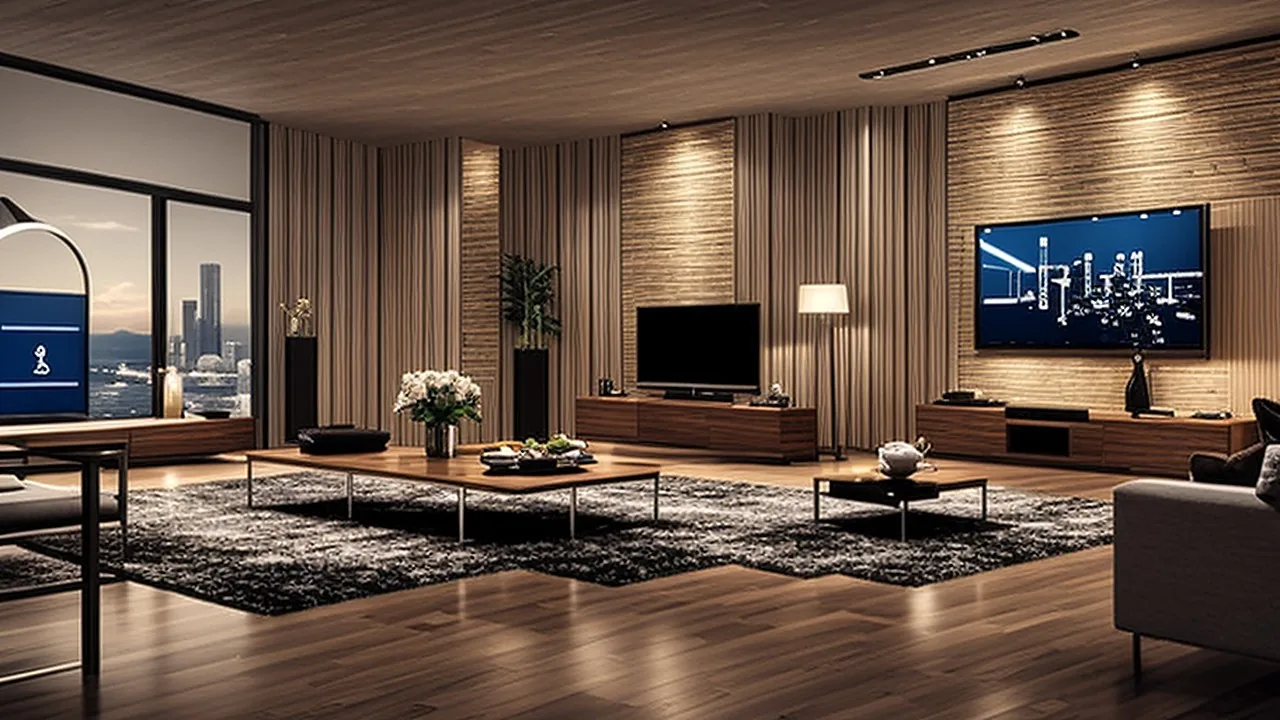
People Are Letting AI Hack Their Smart TVs to Kill the Ads. Here Is the 30-Minute Walkthrough, and How It Can Brick Your Set
A viral wave of people are pointing Claude Code at their TVs to strip ads, disable trackers and build a custom home screen. Here is exactly how a full run works, what it found on a real Philips OLED, why TV tracking is a legal fight, and the real ways it can go wrong.
Advertisement
Every time you switch on your TV, the first thing you see is an advert. Not a trailer for something you watch. An ad on the home screen of a screen you already paid for, for a service you may not even subscribe to, with a banner you can't switch off.
In October, a developer got fed up with that on his parents' TV, handed the problem to an AI coding agent and posted the result. It has since turned into a small movement: people letting AI loose on their televisions.
This is the full picture: what the viral hack was, what a complete run looks like step by step on a real 65-inch TV, why TVs track you in the first place, and the genuine ways it can go wrong.
How a TV hack went viral
On October 17, 2026, a developer who goes by Gathin posted that he had "vibe coded" his parents' TV. It had been showing a sponsored ad before they could even reach Netflix. According to TechCrunch's reporting, he gave Claude Code the TV's model number, the agent found the set on Wi-Fi, removed 25 Xiaomi packages and wrote a new launcher that made the screen look like an Apple TV. His post spread fast, and he published the prompt on GitHub as a project called cleanyourtv. A few thousand people reportedly did the same to their own TVs over the next two days, across Xiaomi, TCL, Sony, Fire TV and LG sets and even a projector or two.
Advertisement
Others piled in. A developer released "dumbtv," built around the idea that a TV should do "what you paid for: your apps, your HDMI inputs, and nothing else." And a user named Mihir Gupta wrote that one afternoon with Claude Code let him disable 25 bloat apps and swap a 192 MB stock launcher for a custom 83 MB one.
None of this requires root access in the cleanyourtv approach, and it disables rather than permanently deletes apps, so a factory reset or restore is possible. But remember those words from TechCrunch's piece: "all of these solutions are works in progress."
Why would anyone do this? The ad-and-tracking problem
There are two separate annoyances bundled into one screen.
1. Ads you can't turn off
The home screen of many smart TVs is an advertising surface. The tiles, banners and autoplaying previews are often paid placements.
2. Tracking by automatic content recognition (ACR)
Most modern smart TVs ship with ACR, technology that identifies what's on your screen using screenshots, audio snippets or other digital fingerprints. The data can then be sold to advertisers or used to target ads on the TV itself.
This isn't just a gripe. In December 2025, the Texas attorney general sued Sony, Samsung, LG, Hisense and TCL, alleging their TVs capture viewing activity and sell it for targeted advertising without meaningful consent. The suits allege violations of the Texas Deceptive Trade Practices Act and seek injunctions against collecting, sharing or selling ACR data. These are allegations; the manufacturers have their own defenses.
Some owners have also reported rooting a set and finding it logging audio from the living room. Treat individual claims like that as claims, but the broader legal fight shows why people are suspicious.
Users also say that switching off background processes makes a TV feel faster. That is anecdotal, but it matches what happens with phones that are loaded with preinstalled apps.
The experiment: a 65-inch Philips OLED
A reviewer decided to test whether the hype was real and whether you need to be an expert. The test subject was a 65-inch Philips OLED. Switching it on showed:
- a banner for a show on a service he doesn't subscribe to,
- trending films and shows from Google that can only be rented,
- autoplaying ads on the home screen,
- none of it removable in settings.
His goal: get rid of every ad on the home screen and hopefully not break the TV.
Step 1: Open the door
You need your computer talking to the TV. The route is the same for most Android TV and Google TV sets:
- Open the TV's settings and find the hidden developer options. On many sets you unlock them by pressing a particular entry (often "Build" or the version number) repeatedly.
- Turn on USB debugging (and network debugging if your TV offers it).
- On your computer, run a single command in the terminal to connect, using the TV's IP address, through the Android Debug Bridge (ADB).
- The first attempt may report a failure, and a prompt appears on the TV asking whether to allow the connection. Choose Allow.
That is the "hack." It's really the TV's own built-in developer interface. The skill needed is knowing how to open a terminal and where to find your TV's IP address.
Step 2: Back up first
Before anything else, the reviewer asked Claude Code to back up the TV's system state and to investigate what the TV was doing in the background. Claude created a backup folder and, importantly, a script to put everything back if something broke. Don't skip this step. It's the difference between an experiment and a gamble.
Step 3: What the AI found
Claude Code surveyed the packages on the TV and flagged:
- Recommendation services: one from Google and two from Philips.
- Philips' own usage and diagnostic loggers.
- Eight apps he never asked for, all installed on the day of manufacture.
- A shop demo mode, the retail display setting used to show off TVs, still switched on.
Step 4: You decide what goes
This is the best practice in the whole story. The reviewer went through the list himself and told Claude what to keep and what it was allowed to remove. The AI proposed, the human decided.
Step 5: Turn things off, in two waves
- Wave one: the easy stuff. Junk apps and unimportant background processes. He approved all of them.
- Wave two: the risky stuff. More complex background processes that could break the TV software if they stopped running. He approved these one at a time.
Step 6: The ads didn't go away
After all that, the ads were still there, even after unplugging the TV at the wall for a hard restart.
Here, the AI earned its keep. Claude looked again and worked out that the ads were coming from the home screen app itself, which downloads them straight from Google. Disabling background services couldn't fix it. The only way to kill the ads was to replace the home screen.
Step 7: Plan B, a replacement launcher
Claude found a third-party home screen app and installed it on the TV. There's a notable detail: the reviewer had to pick up the remote and grant each permission himself, because Claude's security systems wouldn't let it approve those on its own. He said he was glad. That's a sensible guardrail: the agent couldn't escalate its own access.
Replacement launchers for Android-based TVs already exist, such as ATV Launcher, Projectivy Launcher and FLauncher, as TechCrunch notes. With one of those, ads were gone. But the result was a generic grid of icons, many for apps he doesn't use.
Step 8: The "dystopian" moment
He asked Claude to set up the layout and menus. Then he put the remote down.
The agent drove the TV by itself: renaming groups, opening the app list, choosing apps like YouTube, Jellyfin, Steam Link and Spotify and adding them to favorites. He described watching it as both amazing and a little dystopian.
Step 9: A fully custom home screen
Next question: could the AI build a completely custom interface, not a generic launcher? He wrote a brief:
- include only my apps,
- show films from my Jellyfin media server,
- add a personal logo.
Instead of one answer, Claude returned two working mock-ups that he could navigate on his computer with arrow keys, complete with transitions. He picked option B. The agent then wrote the app, installed it on the TV, checked for errors and fixed them.
About half an hour after the first prompt, there it was: a custom, ad-free home screen with exactly the requested apps, connected to his Jellyfin library and showing recently watched films and shows so he could continue with one click.
The final tally
- 22 apps and processes switched off in the background.
- Philips usage loggers and Google's feedback reports disabled.
- No ads.
- A TV that, in his words, genuinely felt faster.
His verdict: it works and it's better than he expected. The hardest part wasn't the AI, it was the initial connection.
Could anyone do it?
Realistically, it depends what you can already do.
You'll probably manage if you:
- are comfortable opening a terminal and pasting a command,
- can find your TV's IP address in its network settings,
- have an Android TV, Google TV or Fire TV-style set with developer options.
You'll struggle if:
- your TV runs a closed system (some LG, Samsung and other proprietary platforms don't expose the same debugging door),
- you're nervous about command-line tools.
And this isn't only for TVs. The same approach, connecting an AI agent to a device's debugging interface, can in principle be used to reverse-engineer all sorts of gadgets.
How it can go wrong
Be honest with yourself before starting. The reports from the same wave are mixed.
- Bricking is real. TechCrunch noted one person said they bricked their Android TV using Claude and another got stuck halfway through hacking a Fire TV. Agents can make mistakes, possibly disabling an important system package.
- Updates can undo it, or conflict with it. Manufacturers push firmware updates that may reinstall apps or reset settings.
- Warranty and support. Enabling developer options and removing system apps might void support or make a manufacturer refuse service. Check your warranty.
- Broken features. Disabling the wrong "tracking" service can break voice search, casting, parental controls, accessibility features or app updates.
- You're granting a powerful agent shell access to a device on your home network. Keep a close eye on what it runs, and never leave it unattended in a mode that automatically approves commands.
- Third-party launchers are software you have to trust. Pick well-known ones.
- Not a privacy guarantee. Turning off some logging services doesn't prove the TV stopped all tracking. ACR may run in other ways, and the network still carries traffic. Disabling processes you've identified is a partial measure.
- Prompts matter. One widely shared version of the prompt is mostly a list of things the agent must not do. That's a good instinct to copy.
A safer way to try it
- Check your TV's platform. Android TV, Google TV or Fire TV give you the best odds.
- Back up and make the restore script before any change. Confirm it exists.
- Ask for a read-only survey first. Make the agent list packages and explain each one before touching anything.
- Approve in batches, riskiest last, one at a time.
- Keep a spare way to control the TV (the original remote, a phone app) in case the launcher swap goes wrong.
- Test after each wave. Check inputs, streaming apps, sound and casting.
- Hold off on firmware updates until you know how your changes behave.
- Consider a simpler route first. Many TVs let you turn off ACR ("viewing information services") and personalized ads in privacy settings, and a streaming stick or box can replace the TV's own interface without modifying the TV at all.
What to put in the prompt
The most useful lesson from the people who've done this isn't a clever command. It's the shape of the instructions. A good prompt for a TV job reads more like a safety brief than a wish list.
Tell the agent what the goal is: remove sponsored tiles, disable background loggers, keep my streaming apps working.
Tell it what it must not do:
- do not uninstall anything, only disable it,
- do not touch system update, Wi-Fi, Bluetooth, remote-control, audio or accessibility services,
- do not factory reset, flash firmware or change bootloader settings,
- do not install anything without telling me what it is and where it came from.
Tell it how to work:
- make a full backup and a restore script first, and show me where they are,
- list every package you plan to change, with a plain-English reason for each,
- wait for my approval before each batch,
- after each batch, check that the TV still responds and report back.
That structure mirrors what happened in the Philips run: survey, backup, human-approved batches, verification. It also gives you an audit trail. If something breaks on day three, you can see which change did it and run the restore.
Why this matters beyond ads
- Agents turn niche tinkering into mainstream capability. Hobbyists once needed forum threads and hours of trial and error. Now a prompt and a half hour will do.
- It's consumer pushback. If enough people replace manufacturer interfaces, the business model of subsidizing cheap TVs with ad and data revenue gets harder.
- It exposes how much runs on your devices. Eight preinstalled apps, diagnostic loggers and recommendation services, installed the day the set was made: the survey itself is eye-opening.
- The guardrail worked. The agent couldn't grant itself the permissions it needed. That's a model for how we want agents to behave.
The counterpoints
- Manufacturers argue subsidized ad and data revenue helps keep TVs cheap.
- Some of what looks like "tracking" supports legitimate features such as recommendations and diagnostics.
- A hobbyist's success on one model of TV doesn't mean it works on yours.
- The loudest viral numbers are social media claims; "6 million views" and "16k GitHub stars" measure attention, not safety.
FAQ
Do I need root access to my TV? The widely shared cleanyourtv approach doesn't require rooting the TV and disables apps rather than uninstalling them, according to TechCrunch.
Can it really remove the ads? In the walkthrough above, disabling background apps wasn't enough because the ads came from the home screen app. Replacing the launcher is what removed them.
Can I brick my TV? Yes, it's possible. At least some users reported bricking or getting stuck. Back up and approve changes carefully.
Is it legal? Using developer options on a TV you own is generally lawful in most places, but warranty terms vary, and you should read your manufacturer's terms.
Does it stop my TV from tracking me? It can disable specific logging and recommendation services, but it doesn't guarantee all tracking has ended.
The bottom line
A half-hour experiment turned a TV that shoved ads in front of the viewer into one that shows only what he asked for, and the interesting part wasn't the AI's cleverness but how ordinary the steps were: open developer options, allow a connection, back up, review a list, approve in waves, replace the launcher. Do it with a backup, a skeptical eye and a human making the calls, and AI can hand you back some control over a screen you already own. Do it carelessly and you may be shopping for a new TV.
Sources
- TechCrunch: People are using AI to make their smart TVs dumb again
- Decrypt: People are vibe coding the ads out of their smart TVs
- Texas Attorney General: Paxton sues five major TV companies over spying
- Ars Technica: Texas sues biggest TV makers, alleging smart TVs spy on users without consent
- The Verge: Texas is suing all of the big TV makers for spying on what you watch

More stories you'll want to read
Mindset over prompts12 minAnother prompting hack won't fix it. The people who get the most out of Claude Code, Codex and Grok Bot aren't always the most technical. They're the ones who stopped believing a short list of quiet excuses. Here are the 11 limiting beliefs, the growth-mindset reframes, and a 10-minute exercise to break them.Read now →
 Jarvis, but real11 minMost AI assistants are glorified chatbots. This one, named Ada, runs on a Raspberry Pi 5, sees the workbench, plans projects, tracks every part you own, writes CAD as code and starts the 3D print. Here is how the build works, step by step, and how you could make your own.Read now →
 Claude as your AI OS11 minYou may only be using a sliver of what Claude can already do. Here is the seven-layer personal setup, from a one-page map to connectors, memory, skills and scheduled routines, that turns it into an assistant that works while you are away, plus the risks to check first.Read now →
 Three-file agent13 minAn inbox agent that labels every email and drafts replies in your voice, built in plain English inside Claude Code and then put on an hourly cloud schedule. Here's the four-level method, the three files that make it work, and the safety settings you shouldn't skip.Read now →
 Muse gets Spaces12 minMeta just gave its Muse agent three upgrades in one week: Spaces that turn a sentence into a self-updating mini app, real-time voice calls, and memory and focus features that used to sit behind a paywall. Here's what they do, a hands-on style walkthrough, and the catches.Read now →
 Your AI chief of staff13 minA solo creator runs his whole business and a chunk of family life on a stack of reusable AI skills and scheduled bots that work in ChatGPT, Claude and Grok Bot alike. Here's every piece, how to build simple versions yourself, and the one rule that keeps it from turning into slop.Read now →